
Compatibility
Zebra devices running Android (require Android 9 or later)
Configuration
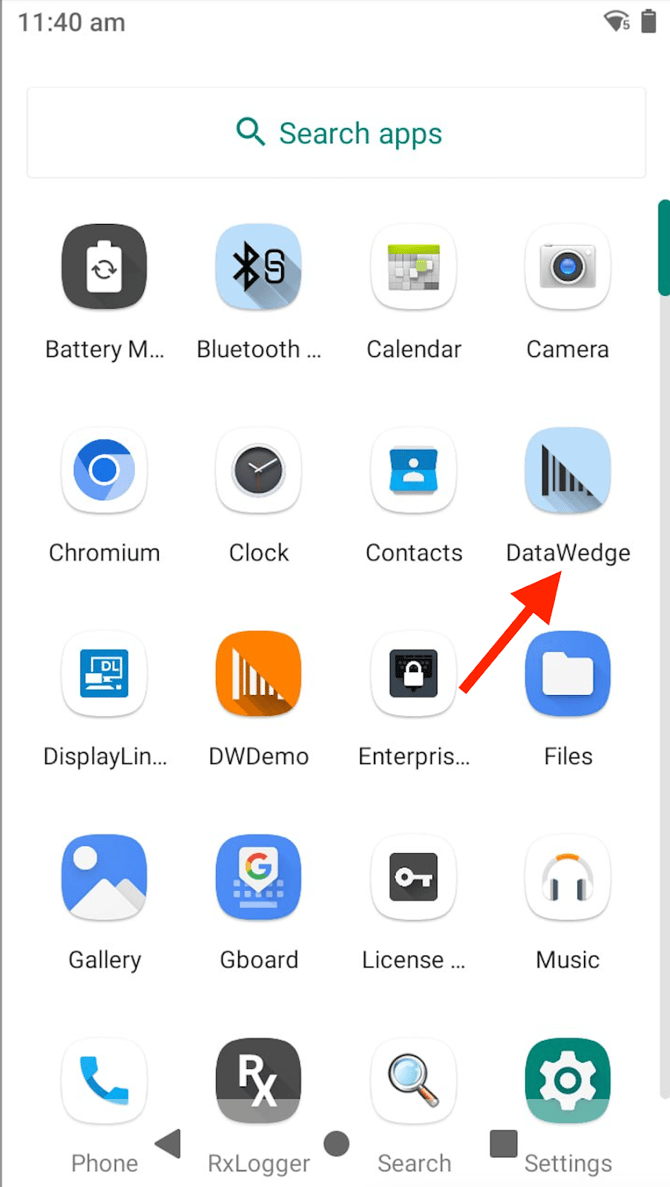
- The launcher icon for DataWedge 7 is shown below. Launch the application by tapping the DataWedge icon on your device. DataWedge comes pre-installed on Zebra devices.
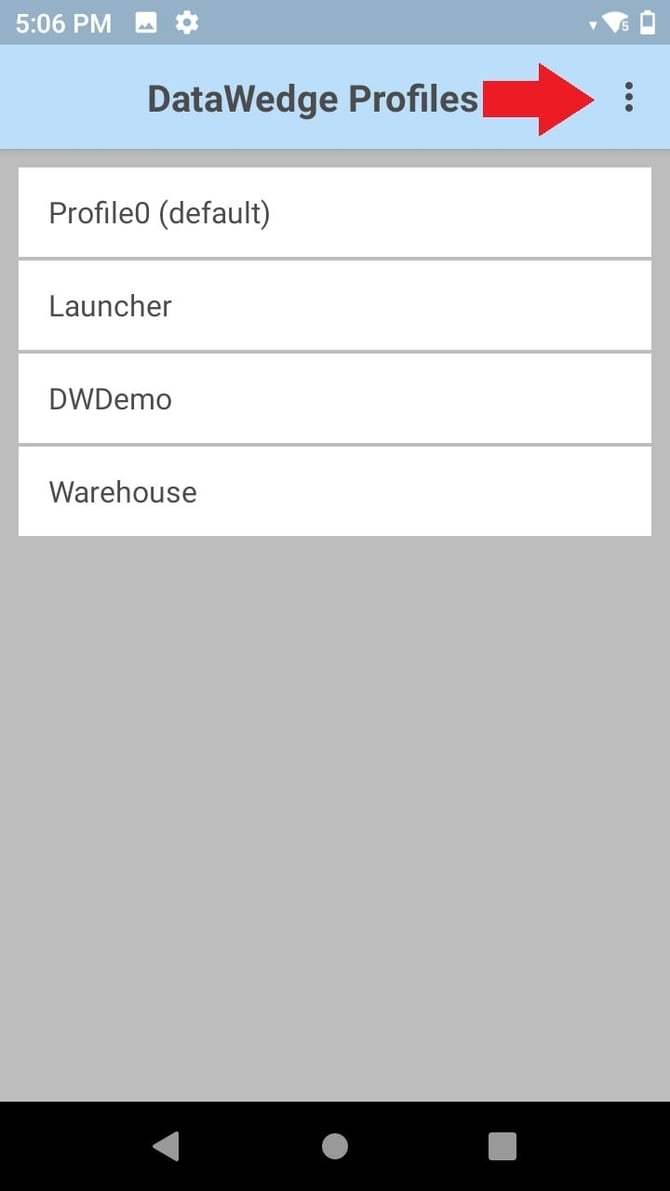
2. On a new installation, the DataWedge Profiles screen appears similar to that of the image below, showing the visible Profiles. White text indicates enabled Profiles. Tap the three-dot menu.
Note: If DataWedge had been opened previously, it will reopen to the last screen used. If necessary, press BACK until the Profiles screen appears.
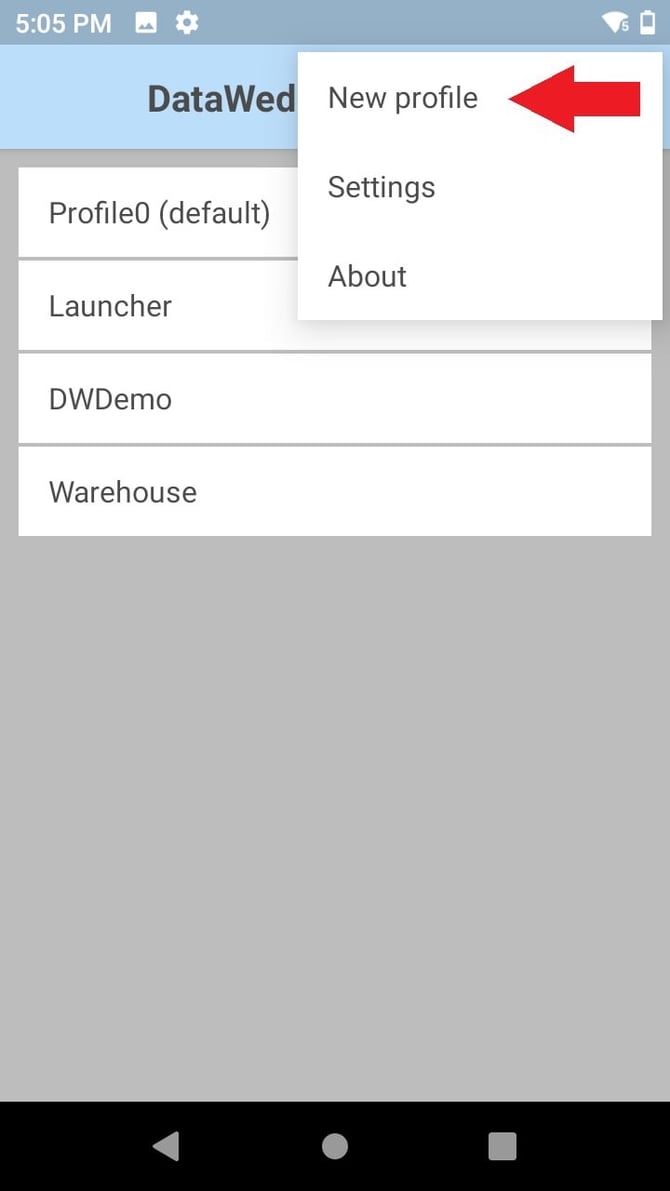
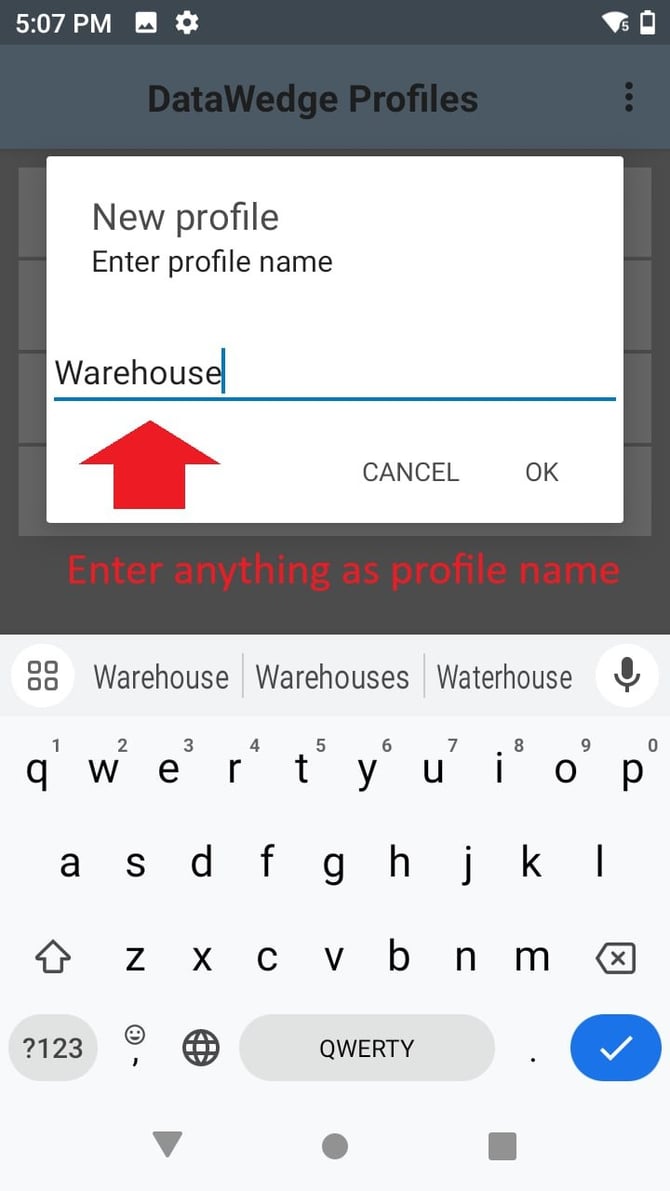
4. In the designated 'Enter profile name' field, input your preferred profile name, such as 'Warehouse', and tap 'OK'. To cancel, tap 'Cancel'. The Profiles list appears, similar to the image in Step 2.
Note: Zebra recommends that Profile names be unique, contain alpha-numeric characters, and be short in length to avoid possible import/export profile issues.
Associate the Profile with App(s) and/or Activities:
5. Tap the Profile to be associated: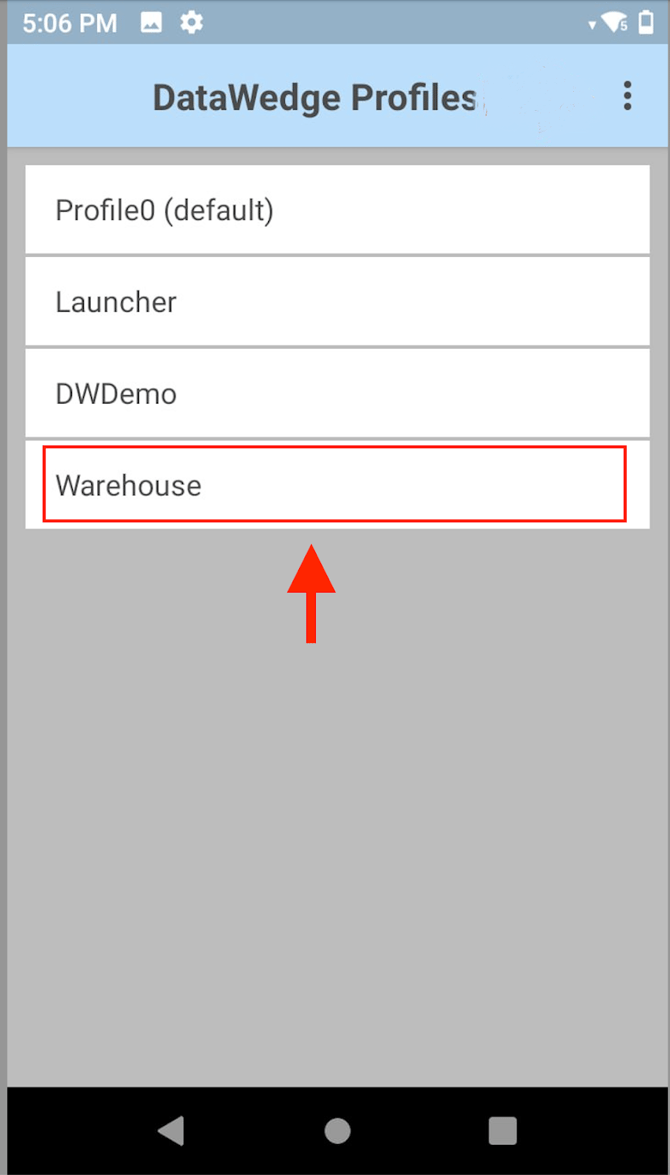
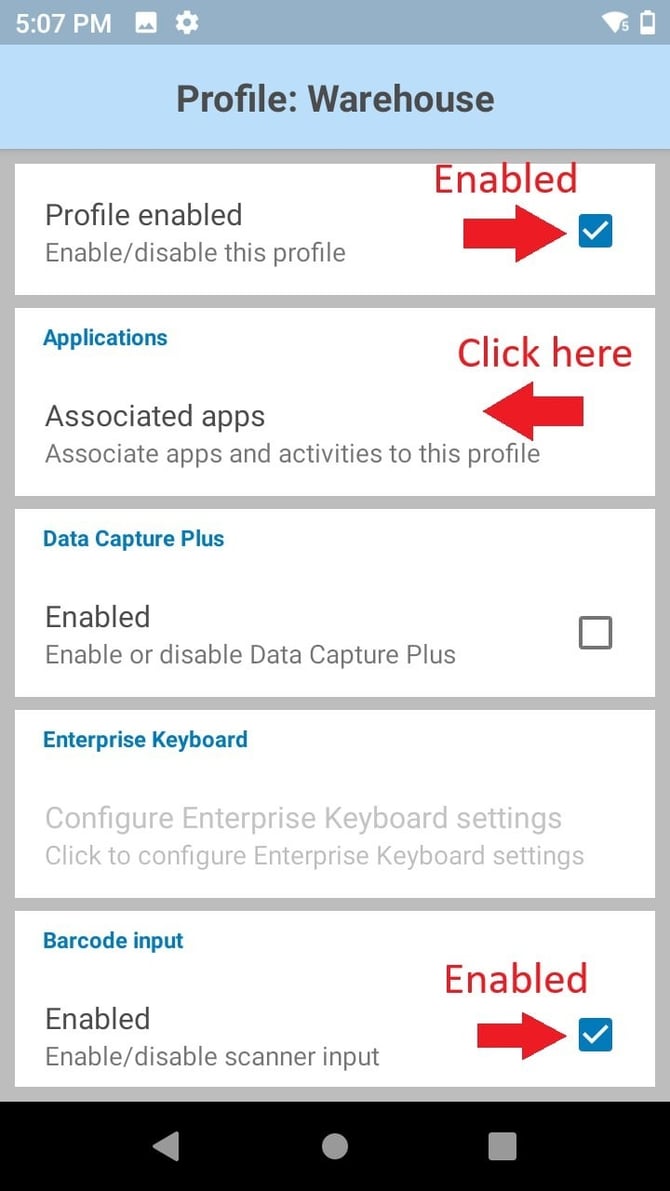
- tap the 'Profile enabled' checkbox to enable it, then
- tap 'Barcode input' checkbox to enable and
- tap 'Associated apps' to link it with an app or activity:
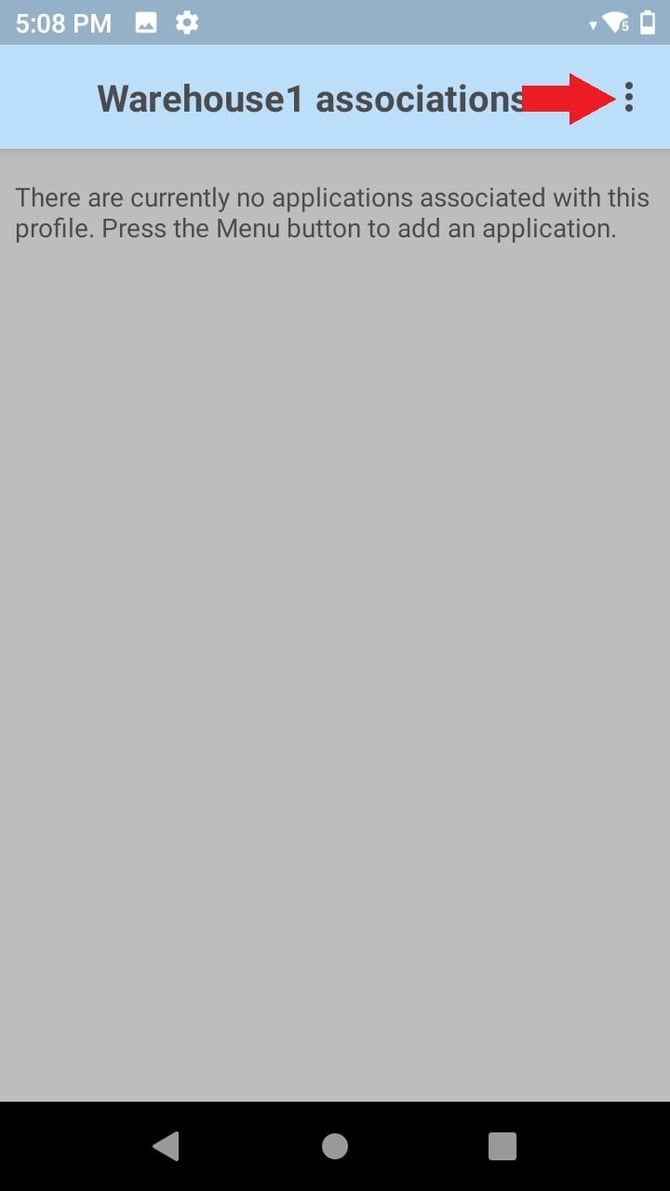
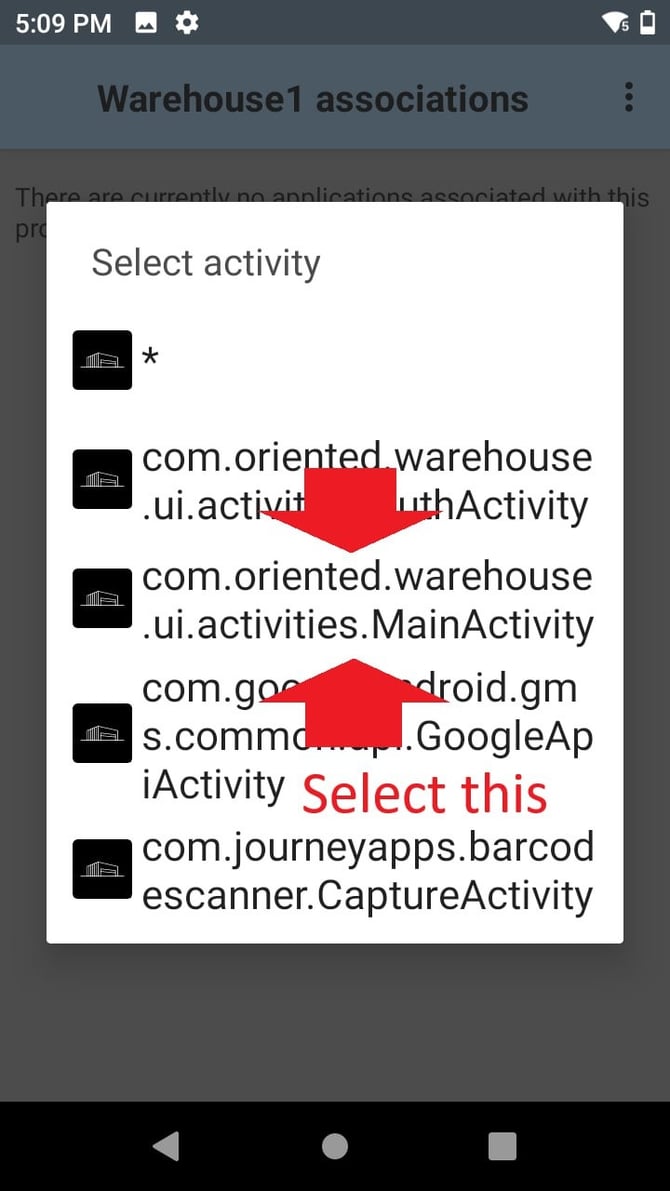
7. Tap the three-dot menu and select -> New app/activity. A list appears with all apps and activities installed on the device.
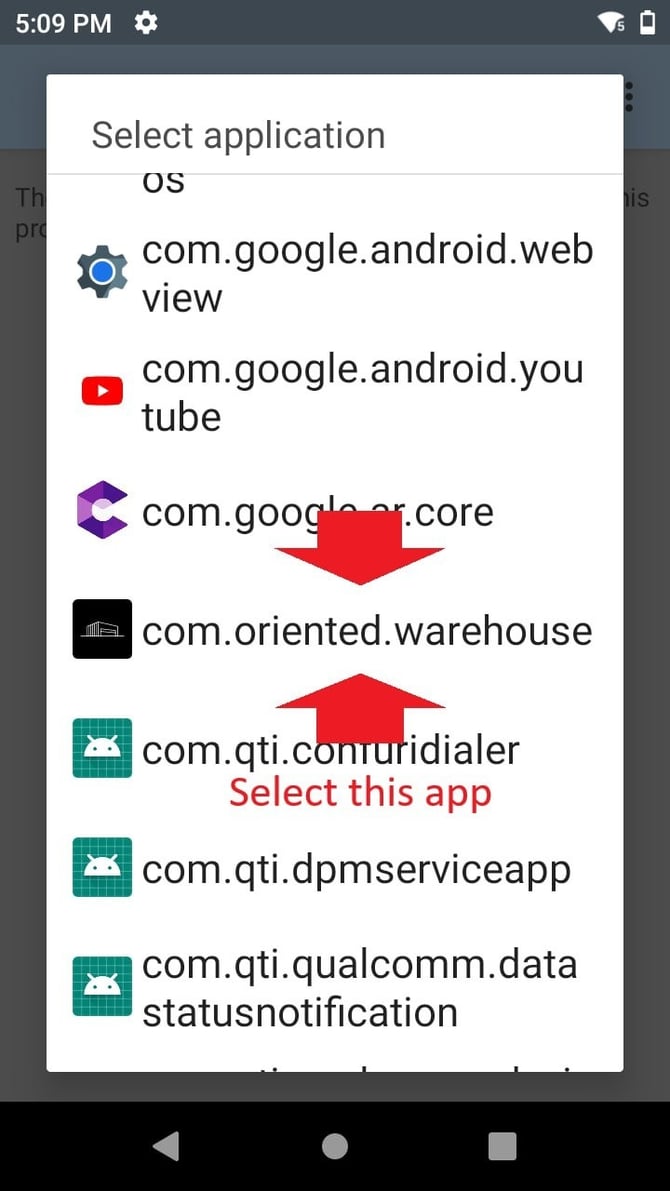
9. From the app activities list, tap the 'com.oriented.warehouse.ui.activities.MainActivity' activity to use DataWedge for that specific activity only:
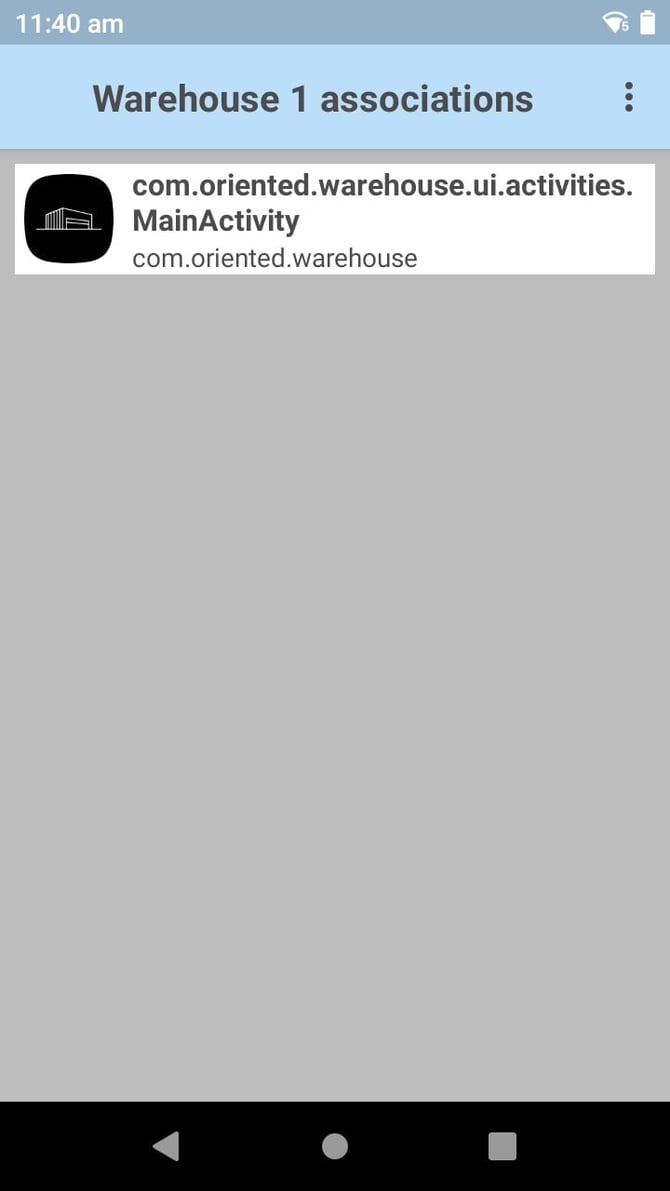
When finished adding associations, tap the back button to return to the Profile screen.
Configure a Profile for Input, Processing and Output:
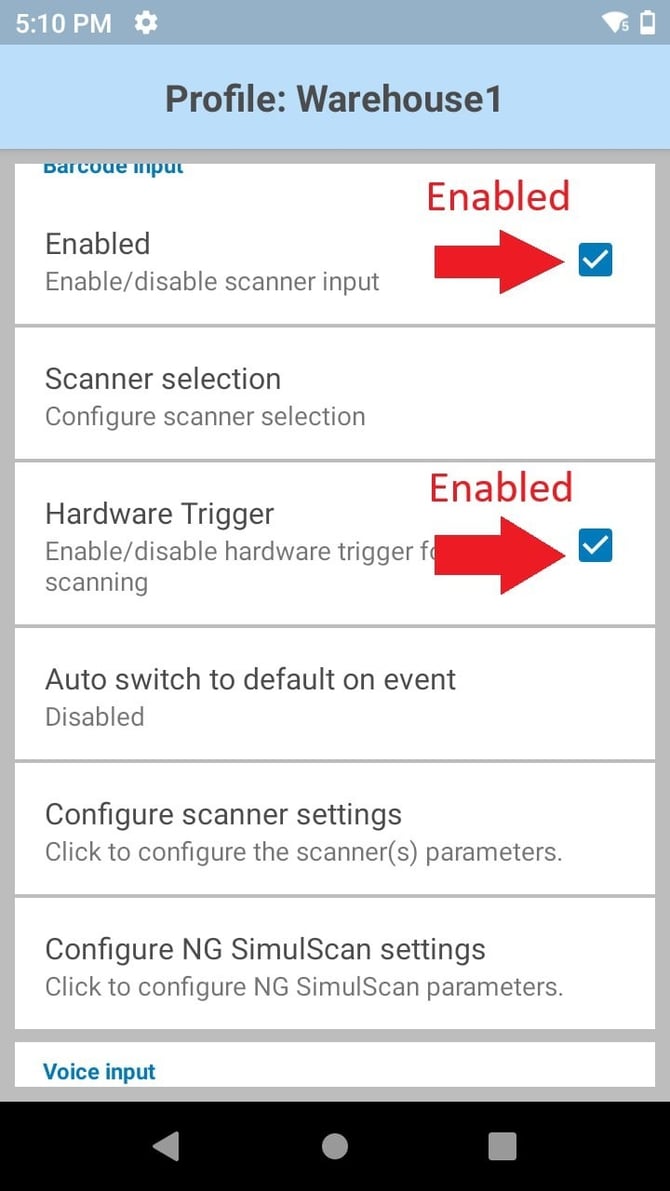
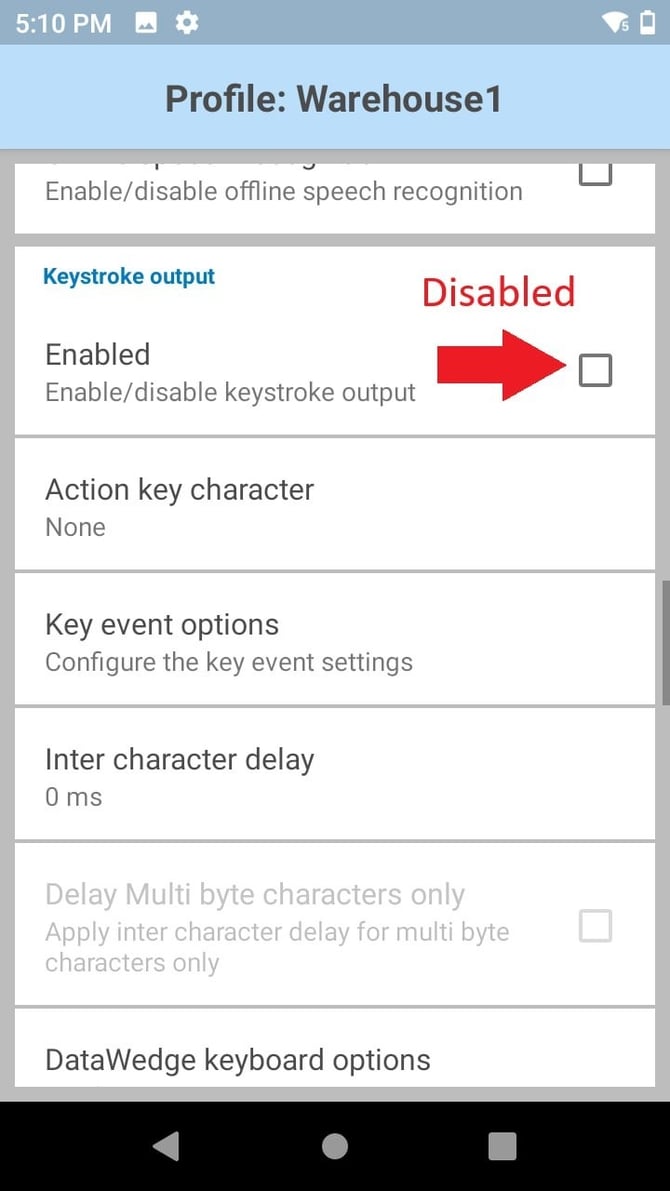
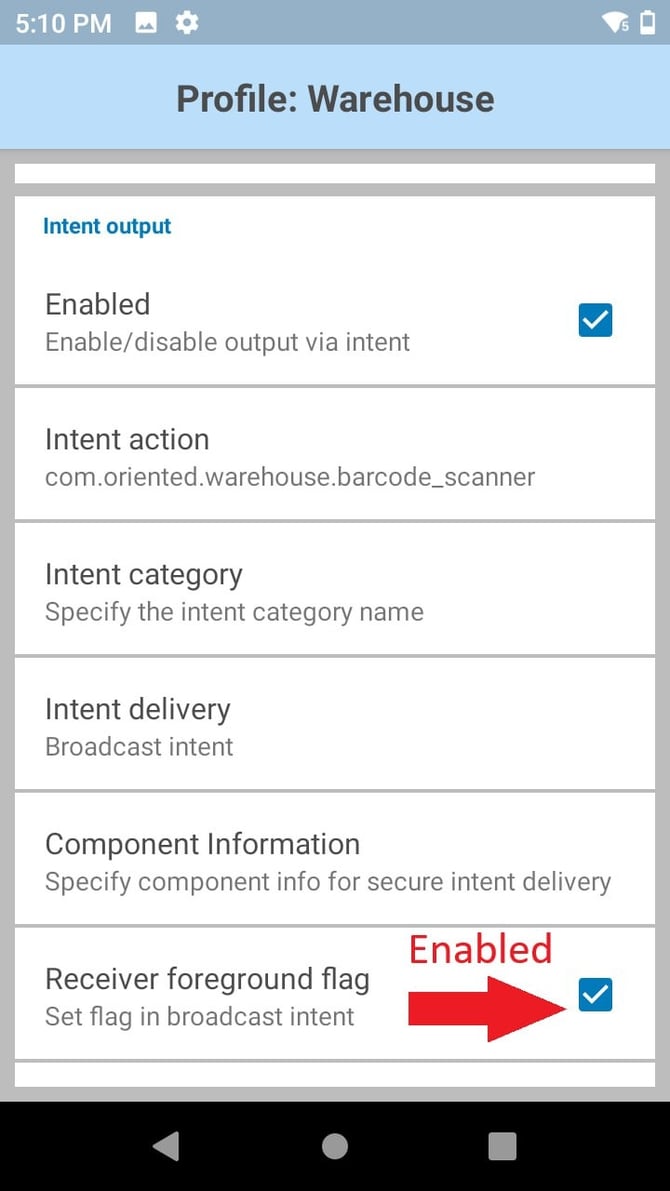
13. To configure DataWedge with Intent Output options:
- Locate the Intent Output section of the Profile
- Check 'Enabled' box to activate Intent Output
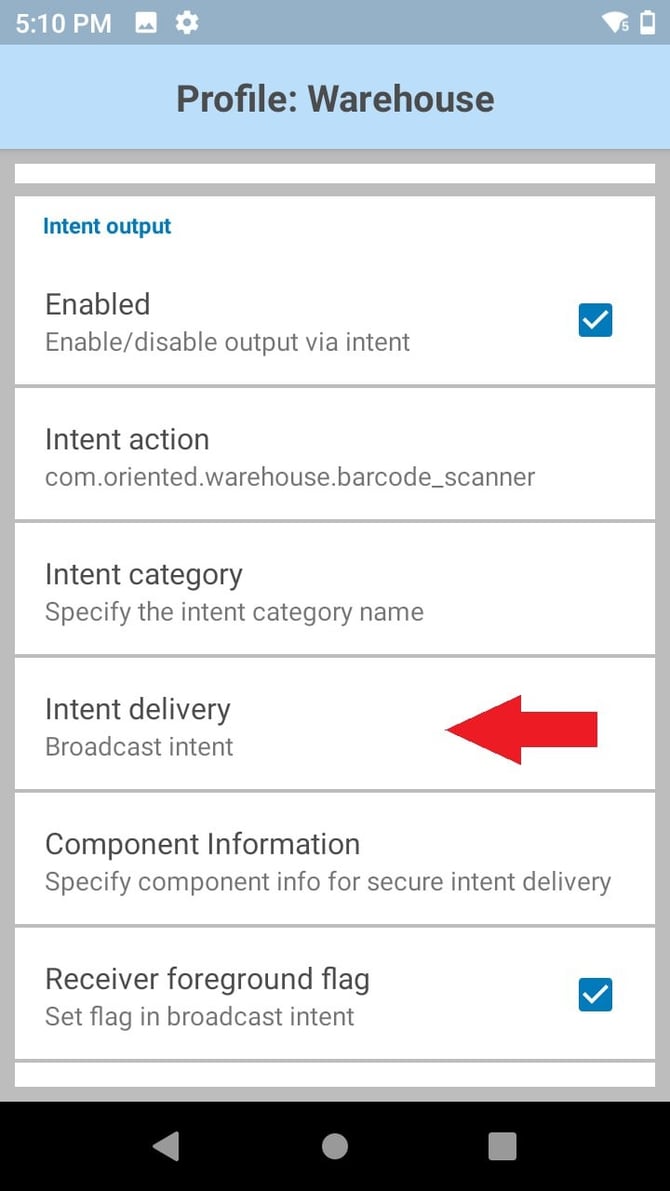
Specify action and delivery as described below:
13.1. Tap the 'Intent action' section.
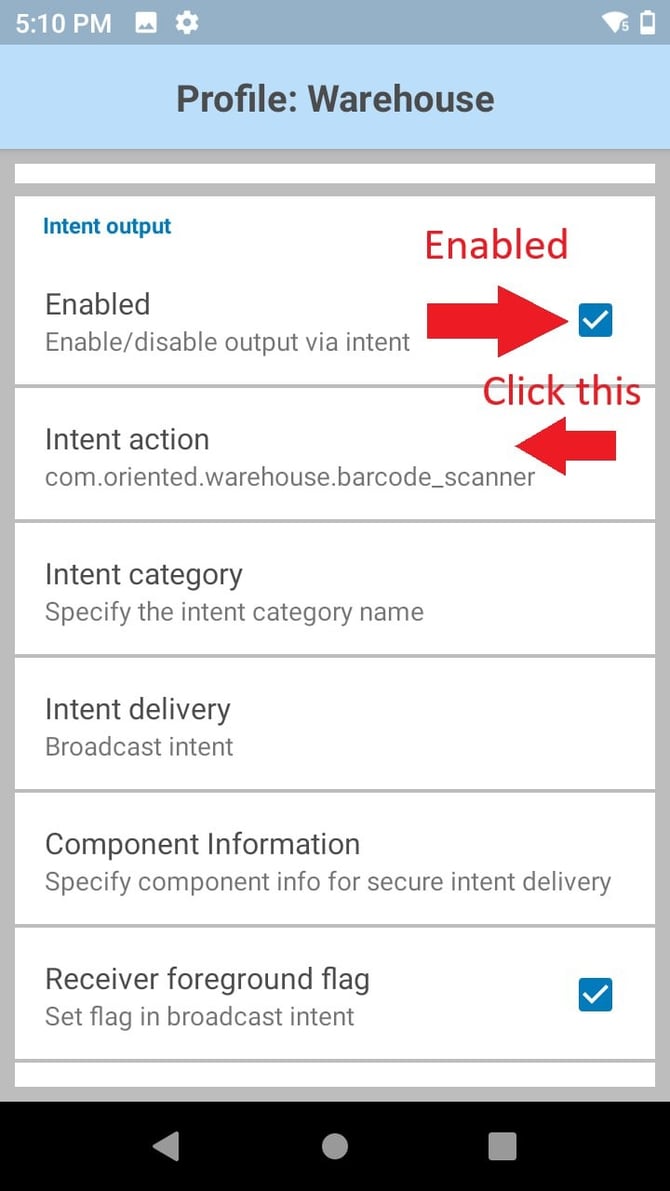
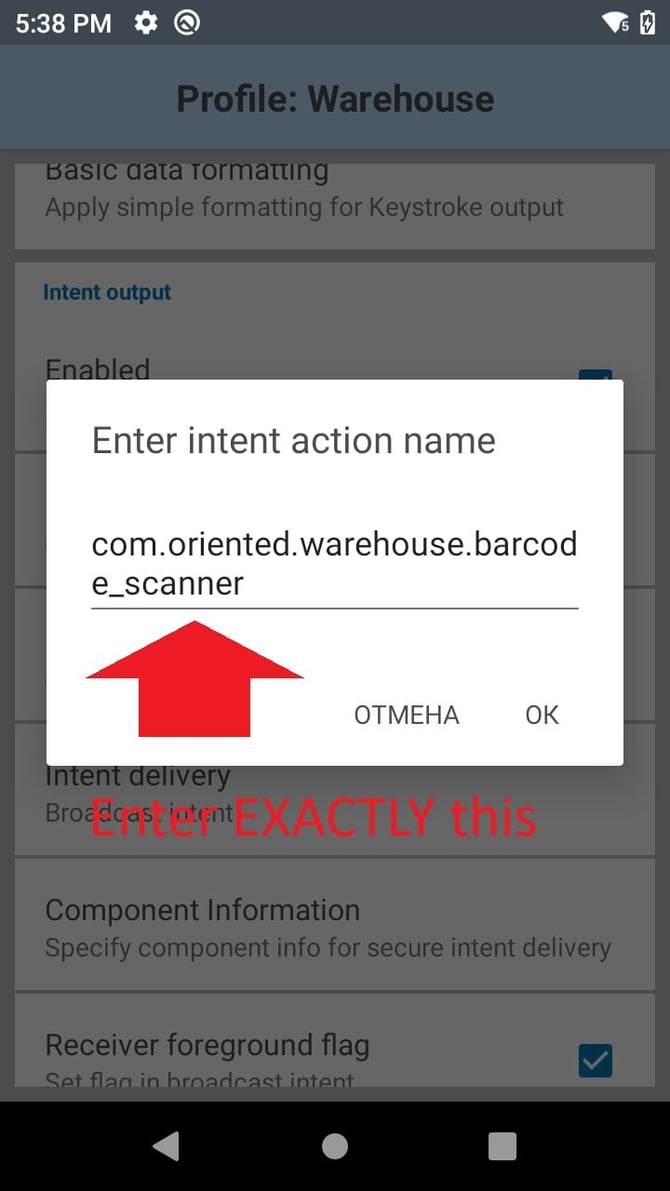
13.2. In the designated 'Enter intent action name' field, input the following name exactly as shown: com.oriented.warehouse.barcode_scanner
and tap 'OK'. To cancel, tap 'Cancel'.
13.3. Tap the 'Intent delivery' section
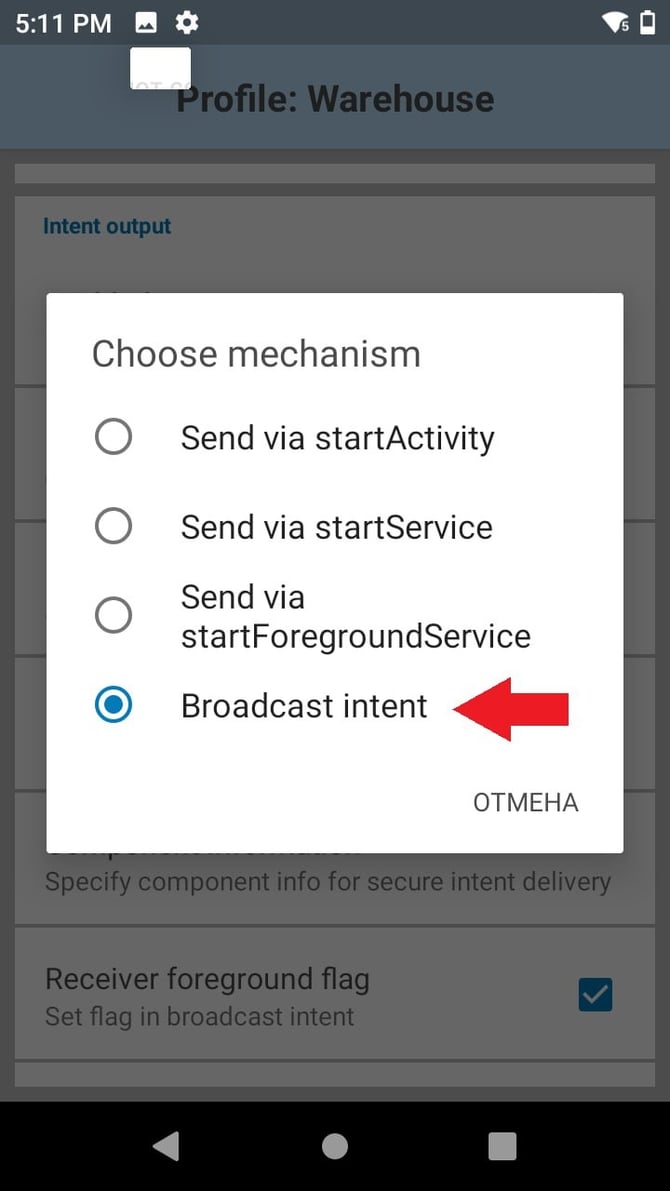
13.4. Select 'Broadcast intent' mechanism.
13.5. Check the 'Enabled' box to activate Receiver foreground flag giving the broadcast recipient permission to run at foreground priority with a shorter timeout interval.
Note: Zebra recommends using this flag if delays are seen in delivery of intents
14. The Warehouse Management System app will now use DataWedge for barcode data acquisition.